WAIT PLEASE

WAIT PLEASE
To access Mondi Štětí a.s., it is necessary to use individual driver logins. This method also ensures that the driver has valid occupational health and safety training.
The carrier can manage access for its drivers in the Drivers module.
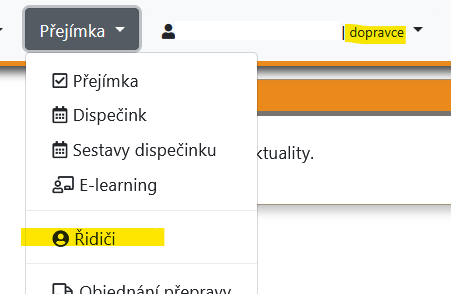
The list of drivers is already pre-filled with data of drivers who registered to complete the occupational health and safety training.
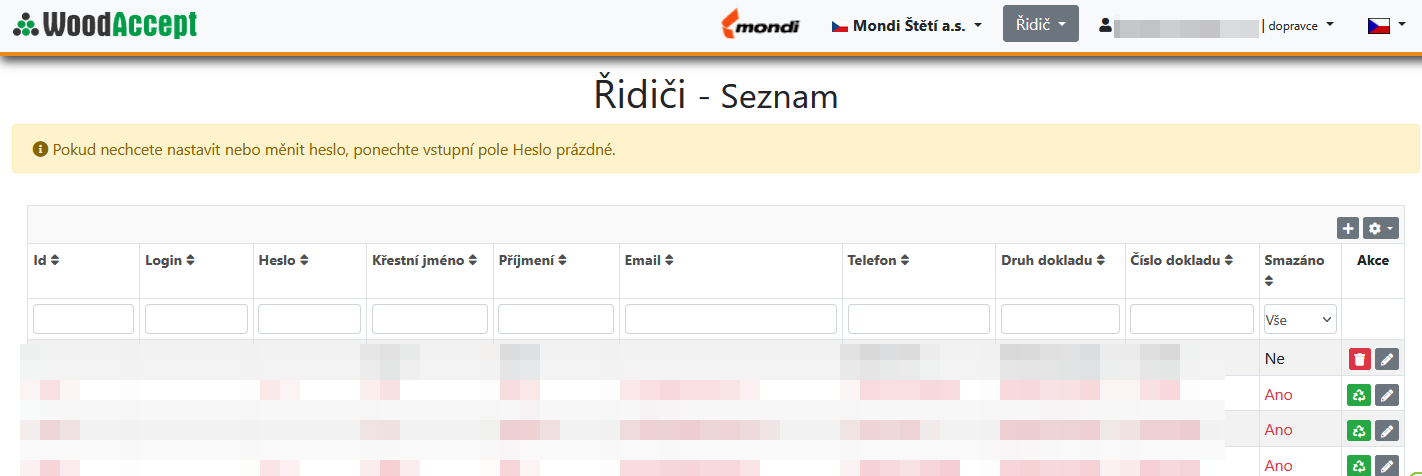
Existing drivers need to be assigned a login and password. A new driver must first be added to the list. If a driver forgets their password, a new one can be set for them.
Passwords are stored in encrypted form and their original wording cannot be retrieved. If needed, a new password must therefore be set.
A driver can be deleted or restored by clicking the relevant icons at the end of the driver's row.
Once a driver has a login and password set, they can log in to the application. Because the WoodAccept application runs on multiple servers, the driver's access must be set up on all servers you want to work with.
The carrier can use their login and password for the WoodAccept web application to log in to the mobile application. However, if they do not want to share this access with their drivers, which allows logging in to both the web and mobile applications, they can set a separate password for the mobile application. This password is used exclusively for access to the mobile application and cannot be used to log in to the web version.
The password for the mobile application can be set in the web application by clicking the company name in the upper-right corner and selecting Edit profile. This option is available only if you are logged in using your admin password. If you do not know this password, ask Wood&Paper to send you a link through which you can set a new password as well as the admin password.
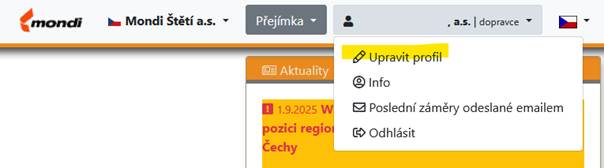
After clicking Edit profile, a form will be displayed where you can set the password for the mobile application.
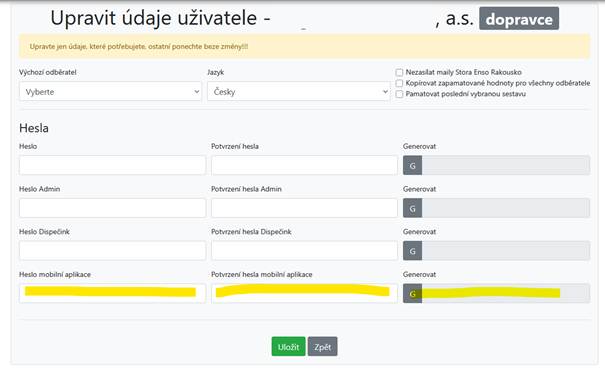
You have two options: either enter the password and its confirmation manually, or click the G button and the password will be generated automatically. In that case, you only need to copy it. The advantage of a generated password is that it automatically meets the complexity requirements (minimum length of 8 characters, lowercase and uppercase letters, digits, and a special character). After setting the password, do not forget to click Save so that the new password is saved.
You will then provide your login and the mobile application password to the drivers for logging in.